ReactiveRealm Mumble Guide
If you’re reading this post, you were likely invited by me to join my Mumble server. While I would love to go into detail on why Discord is now an awful platform for competitive gaming VOIP, I’ll just provide a bullet-point summary and then show you how to join.
Main cons of Discord:
- Heavy on system resources as it is an electron app (Discord is really running in a browser!) - This affects your PC latency and we can actually feel input lag better than you think
- Bloated with features unnecessary for competitive and/or traditional gamers. Discord is now more of a social media than it is a replacement for Teamspeak.
- All text messages are unencrypted and archived whether you “delete” them or not.
- Discord has not and will never be profitable without pushing ads onto users.
Why Mumble?
Discord used to be pretty good when it released, but it was never profitable (and still isn’t), so it’s enshittification is inevitable. Mumble is the return-to-tradition minimalistic voice chat program, except it stayed at its roots unlike Teamspeak. Here are some pros of Mumble:
I pay a small fee for my server monthly and thus have full control over it while enjoying ~16ms ping.

Extremely low RAM and CPU usage. This is not only great for low end PCs but also for high end competitive players who just want voice chat without the extra junk. (21mb vs Discord's 510+mb)

Functions as VOIP software rather than social media platform.
You can now joke about “being 5” and not be demanded to show ID or phone number to keep connected.
But what about chatting when I’m not at my PC? Consider using a more privacy respecting app like Signal or even use Steam/game messages for convenience like myself.
But what about screensharing? We didn’t have it when we played FPS games before Discord so you’ll likely be fine without it now. Prntscr is always available.
Get started with Mumble
First, download the official Mumble client from here: https://www.mumble.info/
Once you start it for the first time, it may prompt you about a certification (identity) and your voice settings. For the certificate, I recommend to create one but do not input an email address. Your certificate is basically saving your identity locally, so when you click register in a server, the server will start remembering you. This is very important if you want to have ranks on servers and not lose them the next time you join.
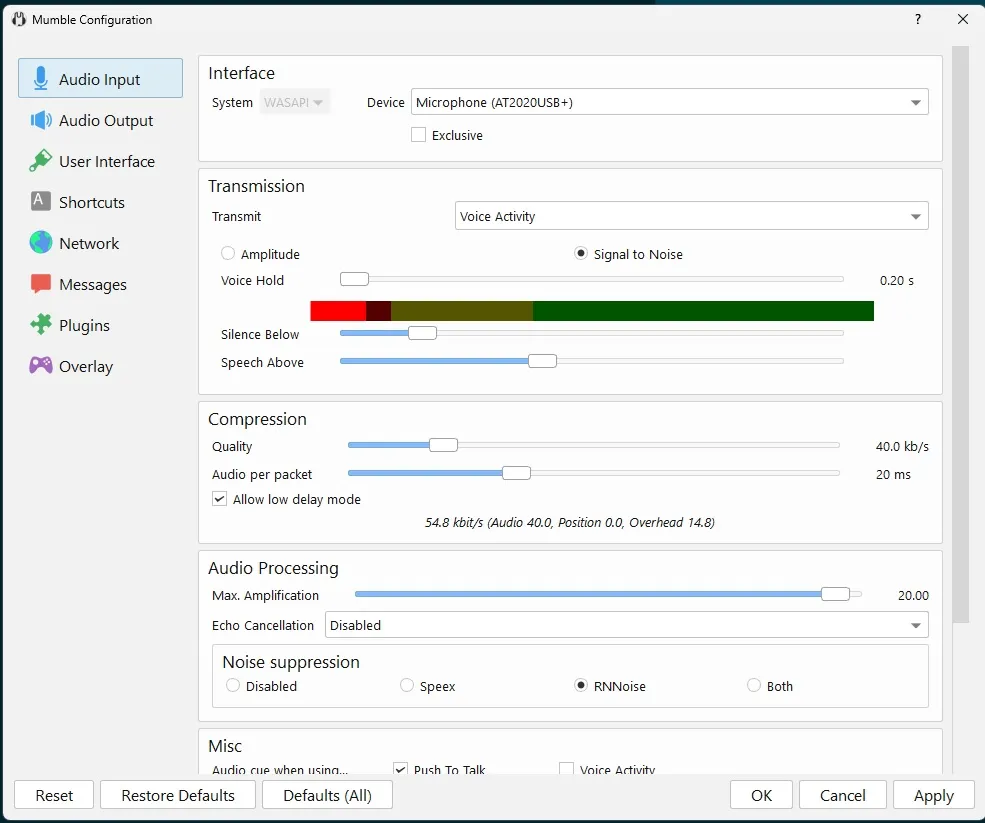
For voice settings, you can try to use the introductory guide; but if you can’t set it up right, skip it and open the settings so you can have access to more options. These are my settings for reference (you will have to tweak the "Silence below" and "Speech Above" sliders)
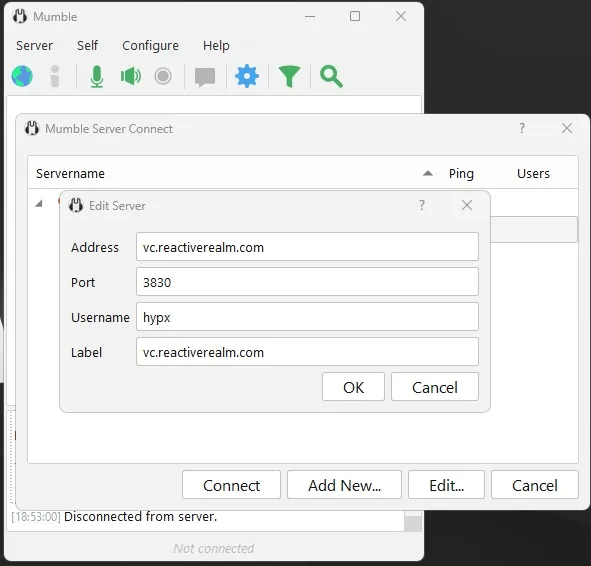
Once you have your settings done, click on the Globe icon in the top left, then "Add New...", from there you can add the Reactive Realm mumble server (or any other server)
Time to frag
You are now able to connect to the Reactive Realm mumble. There isn’t really a strict list of rules so just please be respectful of other users. You are allowed to use a VPN and/or proxy (the latter is implemented directly in the Mumble settings menu). If your VPN or proxy prevents you from connecting, consider using our IP Address to connect (74.91.127.151). If you need any help, you can contact me on Signal @aster.02 , or email hypxmail@pm.me
Check out these posts next
TBA